# Nuvio Knowledge Center
{% hint style="info" %}
**Welcome to the Nuvio Knowledge Center!**
We’ve prepared our guide as a continuously updated resource for Nuvio’s features, how to use them, and answers to frequently asked questions. You can quickly find articles in our Help Center by using the search bar at the top right.
{% endhint %}
Welcome to Nuvio! Whether you’re managing the finances of a one-person business or a large company with hundreds of employees, we’ve prepared a guide where you can find all the information you need while using Nuvio. Still undecided about using Nuvio? Browse through our Help Center to quickly discover how Nuvio can simplify your financial management.
After [creating your free trial ](https://app.nuvio.io/create-account)account with Nuvio, follow our Help Center to learn how Nuvio can transform your financial management.
If you’re currently using another product and are considering switching to Nuvio, check out our guide on[ how to quickly transition to Nuvio](/getting-started/switch-to-nuvio-without-losing-data), which we’ve prepared to make your switch easier.
# Create your company
After you create your account, you’ll create a company in Nuvio. You can think of a company as a replica of your business in Nuvio. You can have more than one company, but, in general, you won’t share information across companies.
### Create your account and company
After you [create your account](https://app.nuvio.io/create-account), you’ll follow the on-screen steps to create a company.
* **Company Name:** Fill your company's name here. This does not need to be your company's legal name. Feel free to enter just your brand's name.
* **Company Short Link:** Fill your company link here. It should be all lowercase, no space between letters, and do not use any special characters. (If your company name is Tesla Inc. you can enter "tesla" or tesla-inc" here) We will create a URL that will help you to navigate to your company page in Nuvio easily if you have more than one company.
* **Country:** Select your operating country here. If your company operates in more than one country, you can select the headquarter country that you would like to be billed in.
* **Functional Currency:** Nuvio operates with more than 20 currencies. Select your main currency here. This currency will be used for reporting purposes and all your income, expenses and financial information will be converted to this currency during any analysis.
{% hint style="warning" %}
If you already started using Nuvio and have financial data, it is currently not possible to change your functional currency later. Please make sure that this currency is the main currency that you would like to get your financial reports.
{% endhint %}
When you create a company in Nuvio, you’re considered a Company Owner. This role gives you the right to add other users to your company and determine their roles within your company.
# Switch to Nuvio without losing data
We know it's hard to switch to a different financial management / accounting platform. That's why we work on this hard to make things easier for you to switch to Nuvio.
If you manage your business finances in other tools or spreadsheets, there is a fast and easy way to start with Nuvio with all your previous financial data.
Nuvio offers bulk imports for all critical information like income, expenses, customers, suppliers, products and services, and projects. In order to bulk import your income and expenses, please make sure that your customers, suppliers, products and projects are also imported beforehand. We automatically match your customers, suppliers, products and projects in your excel file while importing them into the Nuvio.
Below are the guides for importing financial data into the Nuvio. If you need further assistance, do not hesitate to contact us at . We are always here to help you to make a smooth switch.
* [Toplu gelir yükleme](/income/bulk-import-incomes)
* [Toplu gider yükleme](/expenses/bulk-import-expenses)
# Manually create a new income
## What is an income?
An income in Nuvio is considered as all sorts of revenue generating activities including product or service sales or gained interests etc. If your business earned money from an activity, you can record it as an income in Nuvio.
After you create an income, you can always turn that income into an invoice to your customers.
{% hint style="success" %}
**Useful Tips:** After you create an income, you can always turn that income into an invoice to your customers.
{% endhint %}
## Creating an income on Nuvio
1. There are 2 ways to create a new income on Nuvio. First option is located on our top header on every page, you will see a "+" sign button. This is our **shortcut button** to create new items in Nuvio. **Just click "+" sign and select "Add New Income"** and you will be redirected to new income page. The second option is, open **Left Navigation menu, and go Income -> Add New Income** options to create a new income.
2. Once you hit the "Add New Income" button, you see a page that asks for the income details.
3. Fill the fields explained below:
* **Invoice ID:** This will be your invoice's ID and it will be sent to your customer if you choose to send it as an invoice. There are 2 ways to set an invoice ID. If you leave it as it is, it will automatically increment the number when every new invoice created, based on your invoice settings. You can also click "Set Manually" button to assign a different number than your next invoice number manually.\

* **Description:** This field is for you to reference this income later in your income list. It's a basic explanation for you to remind what was this income for. Feel free to type anything here.
* **Customer**: Select an existing customer from the dropdown list. If this is a new customer, just write the customer name into the input field and click "Add new customer" button on the dropdown. No need to go to a different page to add a new customer.\

* **Tag**: Tagging is an easy way to categorize your income for further analysis. Create new tags (categories) and select those tags here.
* **Invoice Date**: Select the date that you want to save this invoice for. This could be a previous or upcoming date based on your income. You can always create an income for the future date, especially useful for installment based incomes.
* **Due Date:** Select the date that payment collection is due. This can only be selected the same day with the invoice date or later. You can use shortcuts in the datepicker to select specific dates easily, like "Same date with invoice date", "7 days after than invoice date", "14 days after than invoice date", "30 days after than invoice date".\

* **Project**: This field is optional. If you want to assign this income as a revenue for a project, select an existing project from the dropdown list. If this is a new project, just write the project name into the input field and click "Add new project" button on the dropdown. No need to go to a different page to add a new project.\

* **Currency and Rate**: You can record a new income in more than 20 currencies in Nuvio. By default, your functional currency selected here with a corresponding currency rate as 1. When you select a different currency from the dropdown list, Rate option becomes available. Type the corresponding currency conversion rate, and Nuvio calculates the rest for you.\

* **Sold items:** Select the product/service you sold, enter the unit price into the Net Amount field, select quantity and corresponding taxes and Nuvio will automatically calculate the Total Amount for that line item. You can add a new line item by clicking "Add New Row" button. All the line items will be summed in Total row.
* **Invoice Attachment:** If you created this invoice in another tool, you can attach your invoice image by browsing your computer or by a simple drag-drop. If you plan to generate the invoice here, do not attach any image, because it will be overwritten once you create your invoice on Nuvio.
4. After filling all the information, click "Save" to record your income.
# Bulk import incomes
Whether you are switching to Nuvio from another tool, or you store your financials in excel files, you can bulk import them into Nuvio. Here's how:
{% hint style="info" %}
When you import incomes to Nuvio, your customers and products related with those incomes should be added to Nuvio beforehand import operation. Please make sure all your Customers and Products / Services on the bulk import excel file are already on Nuvio first.
{% endhint %}
1. On the left menu, click Income page. Then on the top-right corner of the Income page, click **Import/Export** button and select **Import with Excel.**
2. On the Import with Excel popup screen, **Download the template excel file** that is created for your company.
3. Open the Template file with Excel or Google Sheets and copy-paste your incomes into the Nuvio's template file. Please make sure all the field names and orders stays as it is on the Template excel file and do not change them. Here are the field descriptions on the excel file:
* **Invoice ID:** Fill your invoice number or ID here. If you write the same ID in more than 1 row in excel file, Nuvio will consider them as the **same invoice's different line items and merge them automatically** during import process. This is useful when you have revenue for more than one product / service in the same invoice.
* **Invoice Date:** Fill your invoice issue date here. Make sure the date format is in **YYYY-MM-DD**.
* **Due Date:** Fill your invoice payment due date here. Make sure the date format is in **YYYY-MM-DD**.
* **Currency**: Fill the invoice currency here. This field accepts 3-letter currency names as listed on our currencies page.
* **Exchange Rate**: This field is only required when you enter a different currency than your functional currency on Nuvio. Ex: When your functional currency setup in USD and your invoice is in EUR please fill the USD/EUR conversion rate here.
* **Customer**: Fill your customer's name here. Make sure that this name matches with your customer's **Visible Name** field on Nuvio (not the Legal Name)
* **Product / Service:** Fill your product or service's name here. Make sure that this name matches with your product's / service's name on Nuvio.
* **Net Amount:** Fill this field with the result of the **Unit Price \* Quantity** value for that specific product here.
* **Project**: If this invoice relates with a Project on Nuvio, fill your project's name here. Make sure that this name matches with your project's name on Nuvio.
* **Payment Account**: If the imported invoice has already been paid, fill Payment Account, Payment Date and Payment Amount fields. **Payment Account should match the Bank Account name on Nuvio**.
* **Payment Date**: Fill your payment date here. Make sure the date format is in **YYYY-MM-DD**.
* **Payment Amount**: Fill your paid amount here. If this amount matches the total amount on the invoice, it will be automatically marked as paid.
* **Taxes**: Rest of the excel template contains several columns corresponding your active taxes on Nuvio. If this income has any of those taxes, type "**Yes**" on the corresponding tax column. Nuvio will calculate the tax amount automatically.
4. After you create your excel file, you are ready to upload them into the Nuvio. On the Import with Excel popup, click to the Browse section or drag your file and drop on to this section to upload it. After upload is completed click to the Import button and all your income will be imported into the Nuvio shortly.
# Manually create a new expense
## What is an income?
An expense in Nuvio is considered as all sorts of business expenses including cost of goods sold, operating expenses, employee salaries, taxes paid to government, loans, debts etc. If your business spent money on some activity, you can record it as an expense in Nuvio.
## Creating an expense on Nuvio
1. There are 2 ways to create a new expense on Nuvio. First option is located on our top header on every page, you will see a "+" sign button. This is our **shortcut button** to create new items in Nuvio. **Just click "+" sign and select "Add Expense"** and you will be redirected to new income page. The second option is, open **Left Navigation menu, and go Income -> Add New Expense** options to create a new expense.
2. Once you hit the "Add New Expense" button, you see a page that asks for the income details.
3. Fill the fields explained below:
* **Reference No:** This field is optional. Reference no is your expense's or bill's number on you receipt or you can assign a different number to reference it later.
* **Description:** This field is for you to reference this expense later in your expenses list. It's a basic explanation for you to remind what was this expense for. Feel free to type anything here.
* **Supplier**: Select an existing supplier from the dropdown list. If this is a new supplier, just write the supplier name into the input field and click "Add new supplier" button on the dropdown. No need to go to a different page to add a new supplier.\

* **Tag**: Tagging is an easy way to categorize your expense for further analysis. Create new tags (categories) and select those tags here.
* **Expense Date**: Select the date that you made this expense on. This could be a previous or upcoming date based on your expense. You can always create an expense for the future date, especially useful for installment based expenses like loans, credits or rent payments.
* **Due Date:** Select the date that expense payment is due. This can only be selected the same day with the expense date or later. You can use shortcuts in the date picker to select specific dates easily, like "Same date with expense date", "7 days after than expense date", "14 days after than expense date", "30 days after than expense date".\

* **Project**: This field is optional. If you want to track this expense under a project, select an existing project from the dropdown list. If this is a new project, just write the project name into the input field and click "Add new project" button on the dropdown. No need to go to a different page to add a new project.\

* **Currency and Rate**: You can record a new expense in more than 20 currencies in Nuvio. By default, your functional currency selected here with a corresponding currency rate as 1. When you select a different currency from the dropdown list, Rate option becomes available. Type the corresponding currency conversion rate, and Nuvio calculates the rest for you.\

* **Bought items:** Type the item detail you bought. Optionally, if this item is an expense of a product (cost of goods sold) select the product/service you sold. Enter the unit price into the Net Amount field, select quantity and corresponding taxes and Nuvio will automatically calculate the Total Amount for that line item. You can add a new line item by clicking "Add New Row" button. All the line items will be summed in Total row.
* **Expense Attachment:** You can attach an invoice or receipt image by browsing your computer or by a simple drag-drop.
4. After filling all the information, click "Save" to record your expense.
# Bulk import expenses
When transitioning to Nuvio from another product or when you need to bulk import your existing expenses into Nuvio, you can use our bulk import feature to make the process easier. Follow the steps below to quickly perform your bulk expense upload:
1. Access the **Expenses** page from the left-hand menu, then click the **Import/Export** button in the top-right corner and select **Import with Excel**.
2. In the pop-up window, download the template Excel file that has been specially prepared for your company to import the expenses.
3. Open the downloaded template Excel file using Excel or Google Sheets, and place your existing data under the provided column headers.
{% hint style="info" %}
**Nuvio Tips:** When editing the Excel file, make sure the Supplier, Product/Service, and Project names match exactly with how they are written in Nuvio. This will ensure accurate data matching when you upload your information into the system.
{% endhint %}
{% hint style="info" %}
**Nuvio Tips:** The tax columns listed on the far right of the Excel file are customized for your company. You can mark taxes associated with the uploaded income as “Yes,” and leave unassociated or non-existent taxes as “No” or blank. Nuvio will automatically calculate taxes based on the information marked as “Yes.”
{% endhint %}
4. You can now upload the Excel file into Nuvio. After uploading, click the Import button to complete the import process.
5. If Nuvio detects any matching errors or other issues in the Excel file you uploaded, a description of the issue and indicate the row in the Excel file where the problem occurred will be provided. This way, you can easily fix the error and complete your upload.
# Add or edit customers
## Viewing Customers
To access your Customers page, click on **My Company → Customers** from the menu.
On the Customers page, you can view a list of all the customers you have added, see the total revenue earned from each customer, and check the outstanding receivables in their current accounts.
{% hint style="info" %}
**Nuvio Tips:** As your number of customers increases, it will become harder to analyze and find them. Here’s a suggestion to make your work easier: Use the search bar at the top right to quickly search among your customers.
{% endhint %}
## Adding a new customer
To add a new customer, click the **Add New Customer** button in the top-right corner of the Customers page. In the window that opens, you will be asked to enter the following details:
{% hint style="info" %}
**Nuvio Tips:** If you’re using Nuvio for analysis and tracking only, and not for invoicing customers, you can save customer information faster by simply filling in the short name field without entering the invoice details.
{% endhint %}
* **Visible Name**: A simple and clear name for your customer that will be displayed on Nuvio screens. This name will not be used in invoice details; it’s only for easy viewing.
* **Company Legal Name**: The full name of your customer’s company. This field will be used in the invoice details if you issue an e-invoice to your customer.
* **Tax ID**: The tax number of your customer. This will be used in the invoice details.
* **Tax Office:** The tax office your customer is registered with. This will be used in the invoice details.
* **Supplier Checkbox:** Select this checkbox if this customer is also a supplier. If selected same business entity will be added to suppliers list automatically.
* **Contact Information:** You can enter your customer’s address, phone number, and email information in this field. It will serve as a quick reference for contacting them. The email information is the address where invoice emails will be sent.
* **IBAN**: If you want to store and quickly access your customer’s IBAN information, you can enter it in this field.
# Add or edit suppliers
## Viewing Suppliers
To access your Suppliers page, click on **My Company → Suppliers** from the menu.
On the Suppliers page, you can view a list of all the suppliers you have added, see the total expense paid or will be paid to each supplier, and check the outstanding payables in their current accounts.
{% hint style="info" %}
**Nuvio Tips:** As your number of suppliers increases, it will become harder to analyze and find them. Here’s a suggestion to make your work easier: Use the search bar at the top right to quickly search among your suppliers.
{% endhint %}
## Adding a new supplier
To add a new customer, click the **Add New Supplier** button in the top-right corner of the Suppliers page. In the window that opens, you will be asked to enter the following details:
{% hint style="info" %}
**Nuvio Tips:** If you’re using Nuvio for analysis and tracking only, and not for invoicing customers, you can save supplier information faster by simply filling in the visible name field only, without entering any other information.
{% endhint %}
* **Visible Name**: A simple and clear name for your customer that will be displayed on Nuvio screens. This name will not be used in invoice details; it’s only for easy viewing.
* **Company Legal Name**: The full name of your customer’s company. This field will be used in the invoice details if you issue an e-invoice to your customer.
* **Tax ID**: The tax number of your customer. This will be used in the invoice details.
* **Tax Office:** The tax office your customer is registered with. This will be used in the invoice details.
* **Supplier Checkbox:** Select this checkbox if this customer is also a supplier. If selected same business entity will be added to suppliers list automatically.
* **Contact Information:** You can enter your customer’s address, phone number, and email information in this field. It will serve as a quick reference for contacting them. The email information is the address where invoice emails will be sent.
* **IBAN**: If you want to store and quickly access your customer’s IBAN information, you can enter it in this field.
# Tedarikçi ekleme & düzenleme
## Tedarikçileri Görüntüleme
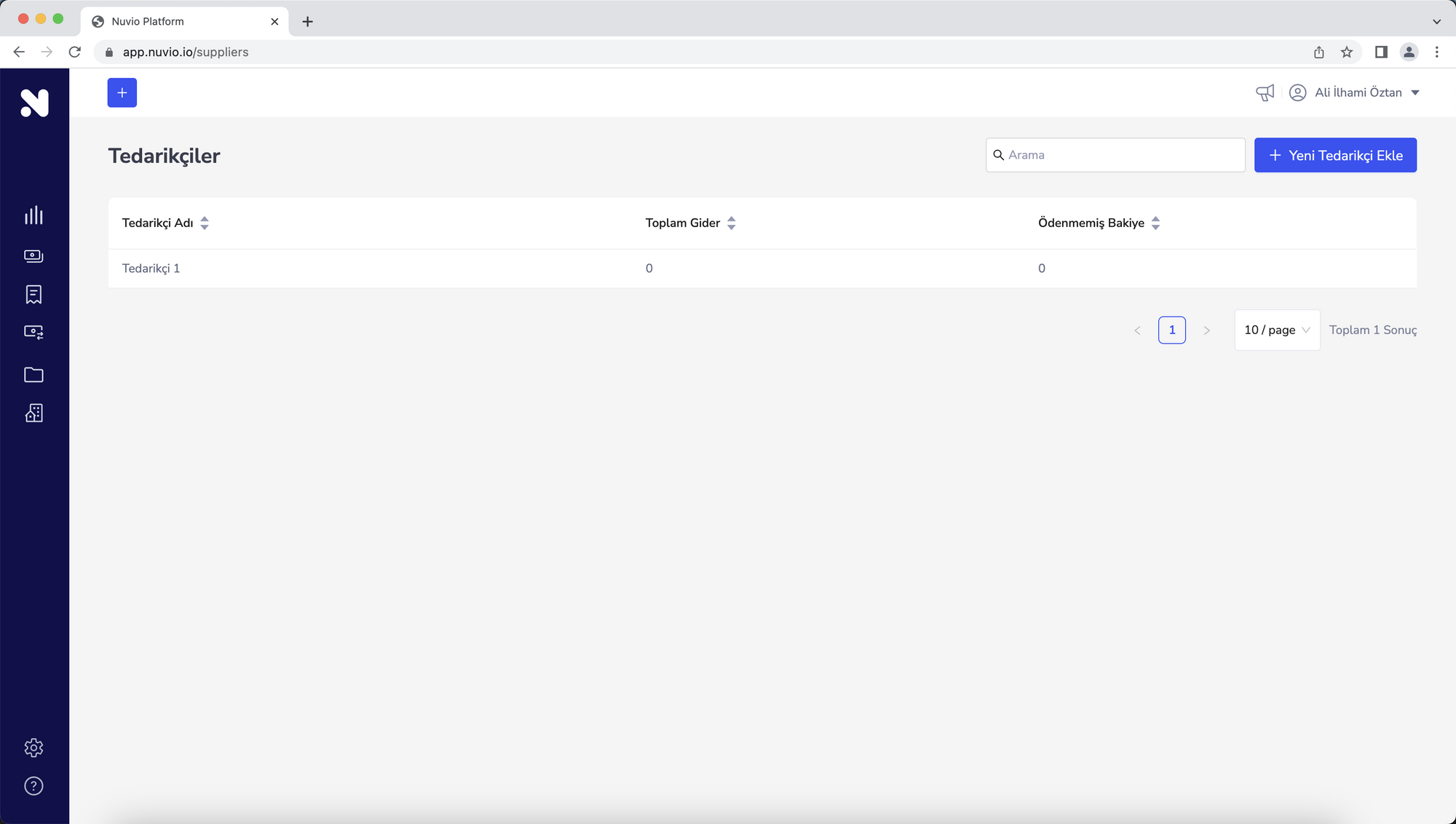
Tedarikçiler sayfanıza ulaşmak için menüden **Şirketim → Tedarikçiler** sayfasına tıklayabilirsiniz.
Tedarikçiler sayfasında tüm eklediğiniz tedarikçilerinizin listesini görüntüleyebilir, her bir tedarikçinize ait toplam gidere ve o tedarikçinizin cari hesabında bekleyen ödemelere ulaşabilirsiniz.
{% hint style="info" %}
**Nuvio'dan ipuçları:** Tedarikçi sayınız arttıkça analiz etmek ve tedarikçilerinize ulaşmak zorlaşacaktır. İşinizi kolaylaştırmak için size bir önerimiz var: Sağ üstteki arama alanını kullanarak tedarikçileriniz arasında hızlı arama yapabilirsiniz.
{% endhint %}
## Yeni Tedarikçi Ekleme
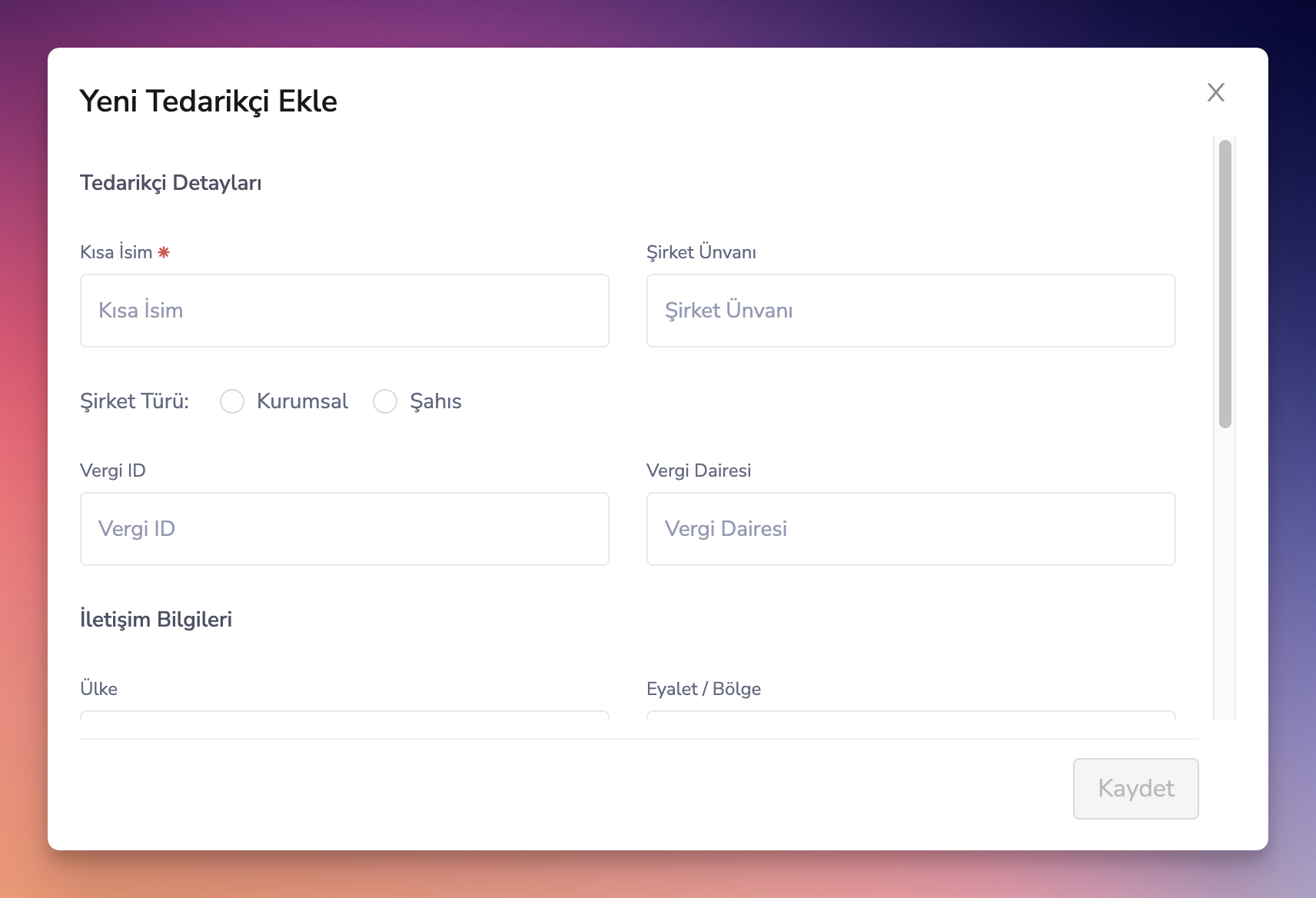
Yeni tedarikçi eklemek için Tedarikçi sayfasının sağ üst köşesindeki “Yeni Müşteri Ekle” butonuna bastıktan sonra açılan pencerede aşağıdaki bilgileri girmeniz beklenmektedir:
{% hint style="info" %}
**Nuvio'dan ipuçları:** Tedarikçilerinze karşı fatura kesmeniz gerekmiyorsa tedarikçi bilgilerini daha hızlı kaydetmek için fatura bilgilerini doldurmadan sadece kısa isim alanını doldurarak müşteri kaydedebilirsiniz.
{% endhint %}
* **Kısa İsim**: Tedarikçilerinizin Nuvio ekranlarında görüntüleneceği kolay anlaşılır kısa ismi. Bu isim fatura bilgilerinde kullanılmayacak, sadece görüntüleme amaçlı kullanılacaktır.
* **Şirket Ünvanı**: Tedarikçilerinizin şirketinin açık ünvanı. Bu alan fatura bilgilerinde kullanılacaktır.
* **Şirket Türü**: Tedarikçilerinizin şirketinin şahıs ya da kurumsal şirket durumuna göre ilgili alan seçilmelidir.
* **Vergi Numarası**: Tedarikçilerinizin vergi numarası. Eğer tedarikçiniz şahıs şirketi ise TC Kimlik Numarası girebilirsiniz. Fatura bilgilerinde kullanılacaktır.
* **Vergi Dairesi**: Tedarikçinizin bağlı olduğu vergi dairesi. Fatura bilgilerinde kullanılacaktır.
* **İletişim Bilgileri**: Tedarikçinizin adres, telefon ve email bilgilerini bu alana girebilirsiniz. Tedarikçinize hızlıca ulaşmanız için rehber olacaktır. Email bilgisi ise tedarikçinize göndereceğiniz fatura ve hatırlatma email’lerinin iletileceği adrestir.
* **IBAN**: Tedarikçinizin IBAN bilgisini saklamak ve gerektiğinde hızlıca ulaşmak isterseniz bu alana giriş yapabilirsiniz.
# Ürün/Hizmet ekleme & düzenleme
## Ürün/Hizmetleri Görüntüleme
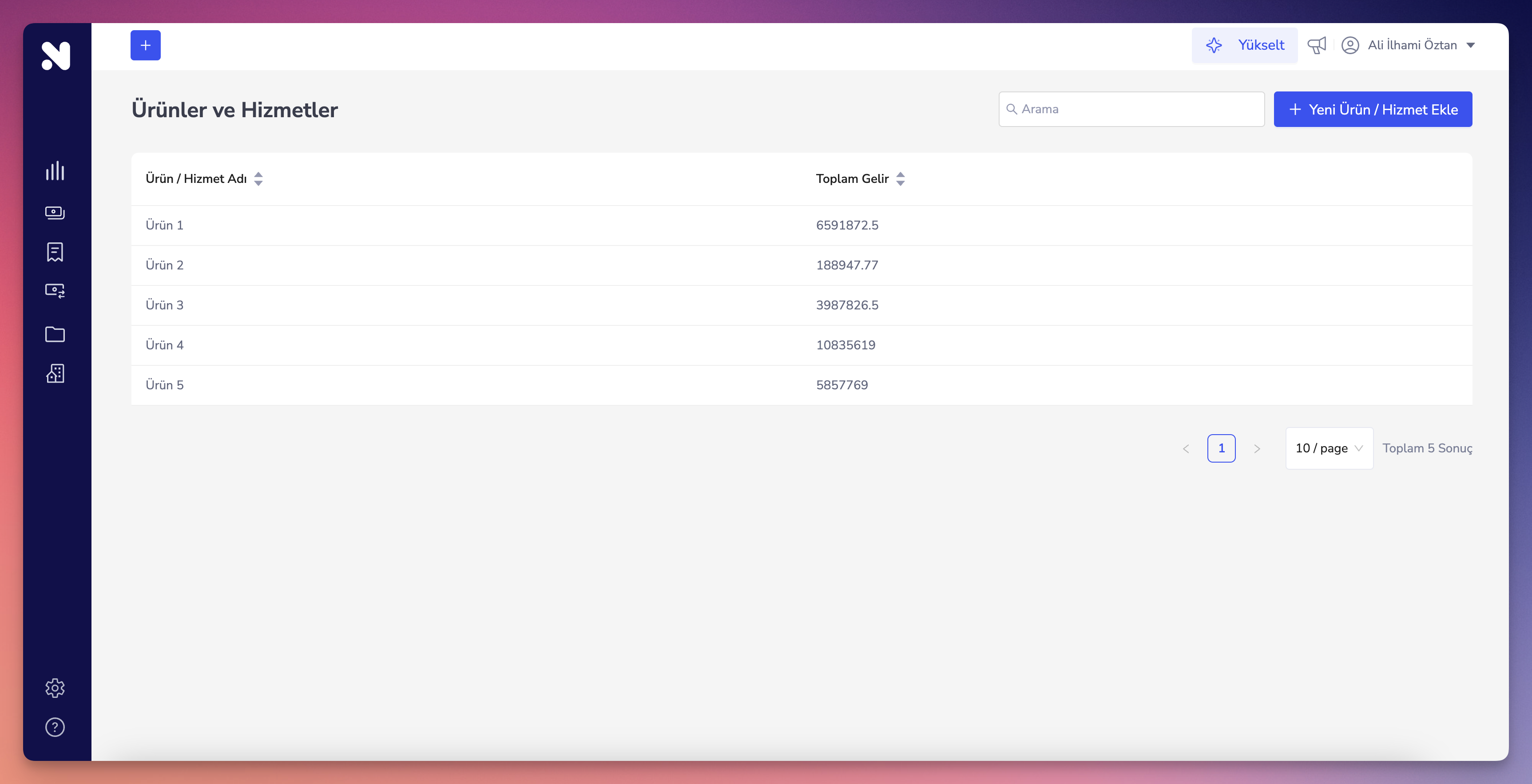
Ürün/Hizmetler sayfanıza ulaşmak için menüden **Şirketim → Ürünler ve Hizmetler** sayfasına tıklayabilirsiniz.
Ürünler ve Hizmetler sayfasında tüm eklediğiniz ürün/hizmetlerin listesini görüntüleyebilir, her bir ürün/hizmetinizden elde ettiğiniz gelire ulaşabilirsiniz.
{% hint style="info" %}
**Nuvio'dan ipuçları:** Sağ üstteki arama alanını kullanarak ürün/hizmetleriniz arasında hızlı arama yapabilirsiniz, analiz etmek istediğiniz ürünün adını yazarak hızlıca erişebilirsiniz.
{% endhint %}
## Yeni Ürün/Hizmet Ekleme
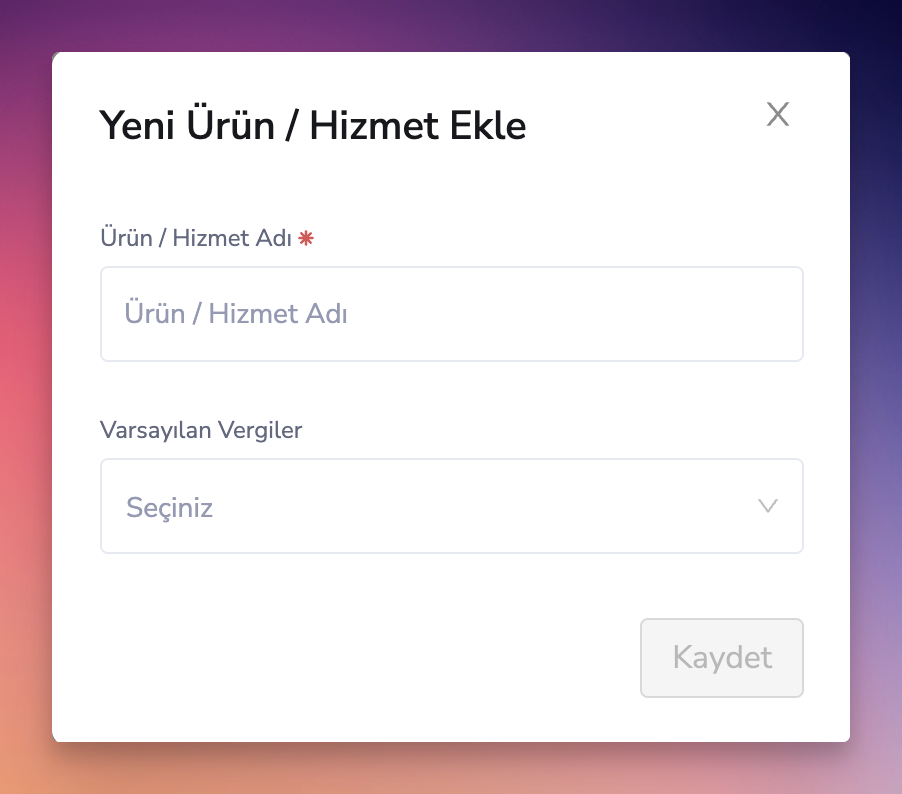
Yeni ürün/hizmet eklemek için Ürünler ve Hizmetler sayfasının sağ üst köşesindeki **Yeni Ürün/Hizmet Ekle** butonuna bastıktan sonra açılan pencerede aşağıdaki bilgileri girmeniz beklenmektedir:
* **Ürün/Hizmet Adı**: Ürün/hizmetinizi takip etmek ve görüntülemek için kullanmak istediğiniz isim.
* **Vergiler**: Ürününüz/hizmetiniz için kullanılacak varsayılan vergileri seçiniz. Bu vergiler gelir veya gider eklerken ilgili ürünü seçtiğinizde otomatik olarak eklenecek ve her faturada tekrar eklemenize gerek kalmadan girişlerinizi kolaylaştıracaktır.
# Proje ekleme & düzenleme
## Projeleri Görüntüleme
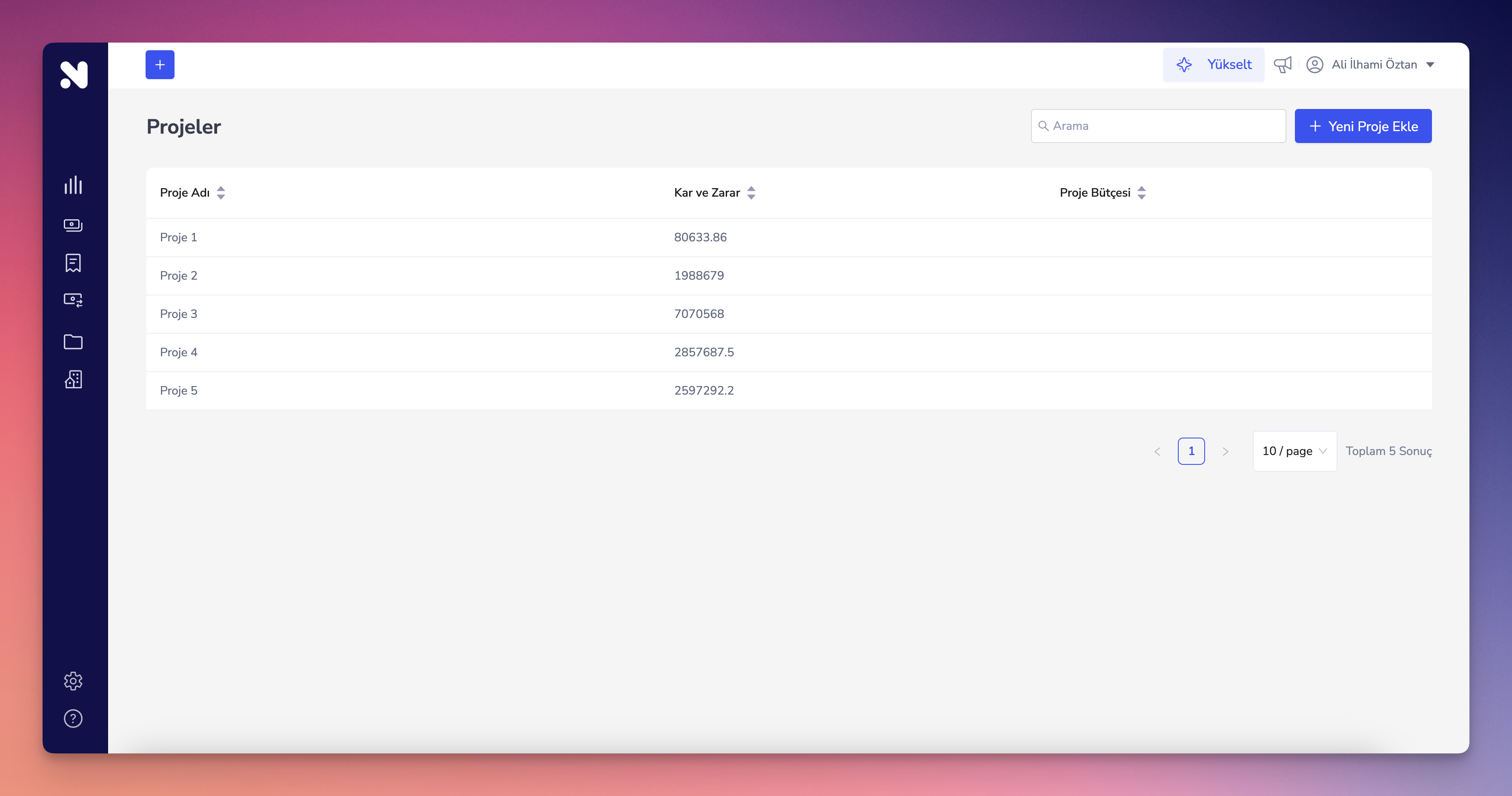
Projeler sayfanıza ulaşmak için menüden **Şirketim → Projeler** sayfasına tıklayabilirsiniz.
Projeler sayfasında tüm eklediğiniz projelerinizin listesini görüntüleyebilir, her bir projenizden kâr/zarar durumuna ve bütçesine ulaşabilirsiniz.
{% hint style="info" %}
**Nuvio'dan ipuçları:** Sağ üstteki arama alanını kullanarak projeleriniz arasında hızlı arama yapabilirsiniz, analiz etmek istediğiniz projeyi yazarak hızlıca erişebilirsiniz.
{% endhint %}
## Yeni Proje Ekleme
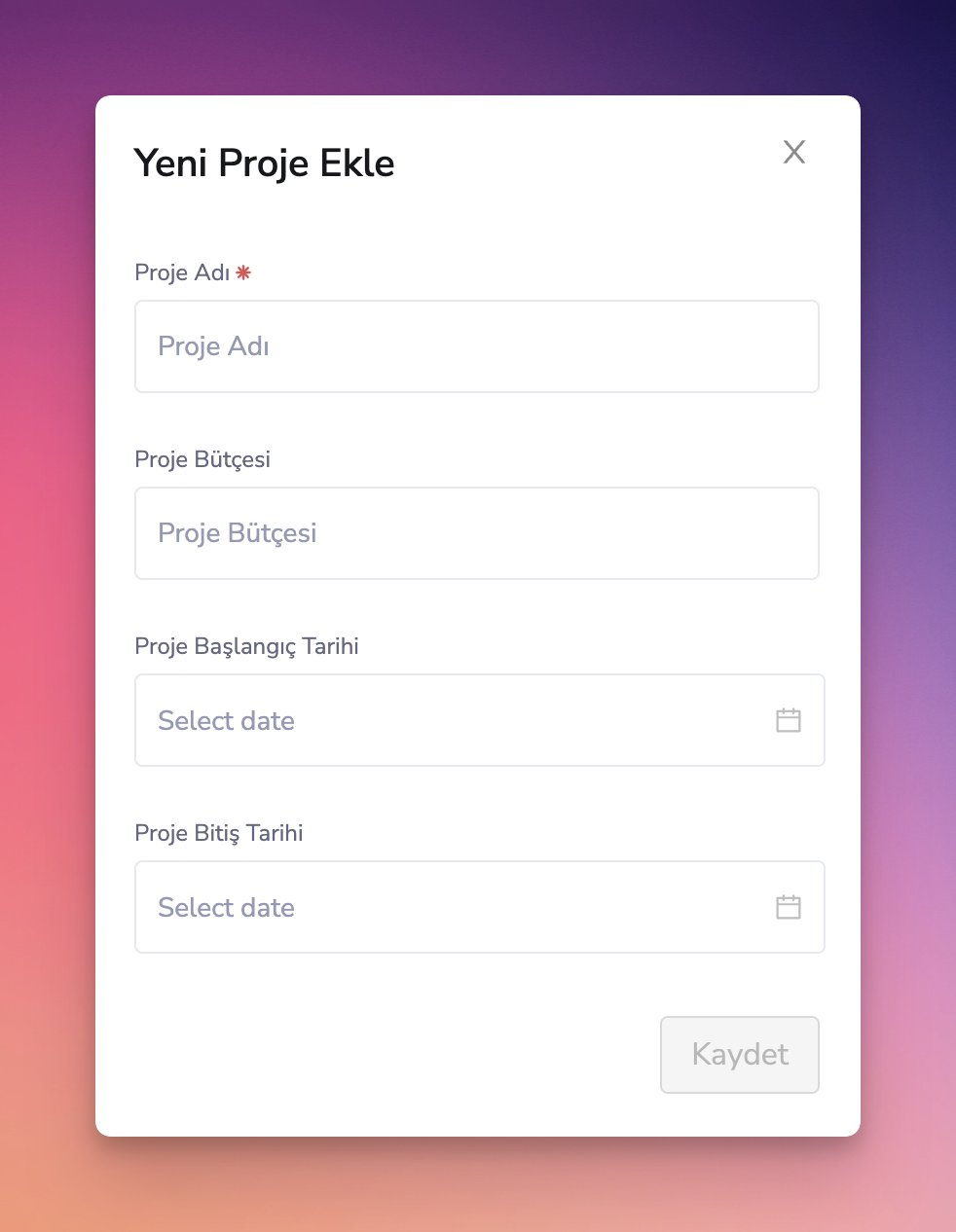
Yeni proje eklemek için Projeler sayfasının sağ üst köşesindeki **Yeni Proje Ekle** butonuna bastıktan sonra açılan pencerede aşağıdaki bilgileri girmeniz beklenmektedir:
{% hint style="info" %}
**Nuvio'dan ipuçları:** Projelerinizin bütçe takibini yapmak için tek yapmanız gereken proje ekleme adımında projenizin bütçe bilgisini girmek. Kalan bütçenizi ve ne kadar hızla bütçenin harcandığını Nuvio sizin için hesaplayacaktır.
{% endhint %}
* **Proje Adı**: Projenizi takip etmek ve görüntülemek için kullanmak istediğiniz isim.
* **Proje Bütçesi**: Projeniz için ayırdığınız toplam bütçe. Bu bilgiyi sağlamanız projenizin giderlerinin bütçenize göre analiz edilmesini sağlayacaktır.
* **Proje Başlangıç/Bitiş Tarihi**: Projenizin aktif / geçmiş proje statüsünü takip etmek için başlangıç ve bitiş tarihlerini girebilirsiniz.
# Payments & Billing
## How Nuvio Billing Works?
* All plans in Nuvio are ***per company***, not per user account. You can upgrade one company workspace and still have any number of free company workspaces.
* All users under the same company workspace will be upgraded to selected plan when upgrade takes place, no need to pay for each user.
* You can add as many users & colleagues as you wish, we do not charge for added users on any of our paid plans.
* Sales-managed plans (**Enterprise Plan**) are billed differently. [Please contact our sales team](mailto:help@nuvio.io) for more information.
{% hint style="info" %} **Note:**
Only the owner or an admin of a company workspace will be able to view the company settings page in order to take many of the billing actions described on this page, such as upgrading a workspace, updating billing information, and making changes to the company plan. All non-owner or non-admin collaborators on a workspace will not be able to access its billing information.
{% endhint %}
## How to check your workspace's plan
To begin, **you must have Company Owner or Company Admin permissions** to follow these steps:
* Step 1: Log into [Nuvio](https://app.nuvio.io).
* Step 2: Move your cursor to the left sidebar of the homescreen to find the section named **Settings**. From here you can choose **Company Settings.**
* Step 3: Near the top portion of the company settings page you’ll see "**Billing**" tab. Click the tab to see plan details.
* Step 4: This will open the billing details page. From here you can find out which plan you are on and when is your renewal.
## How to buy or upgrade a Nuvio Plan?
To buy or upgrade a Nuvio plan, **you must have Company Owner or Company Admin permissions** to follow these steps:
* Step 1: Log into [Nuvio](https://app.nuvio.io).
* Step 2: Move your cursor to the left sidebar of the homescreen to find the section named **Settings**. From here you can choose **Company Settings.**
* Step 3: Near the top portion of the company settings page you’ll see "**Plans**" tab. Click the tab to select a new plan.
* Step 4: If this will be your first purchase, Nuvio will ask you to provide your company invoice details for proper invoicing after the payment. Please fill all the required information on this page.
* Step 5: On the Payment step, you will see a summary of your invoice information and your payment summary. You can securely enter your credit card information and our payment processor Stripe will process the payment.
## Billing and Payment FAQ
How to apply a promotion code while subscribing to a plan?
After you select your desired plan and reached to payment step, you will see an input field to apply your promotion code right below plan and payment summary. You can type your promotion code and click apply. The promotion code will automatically change your plan summary and now you can click "Pay" button with the discount applied.\
\